
1.Open "Control Panel"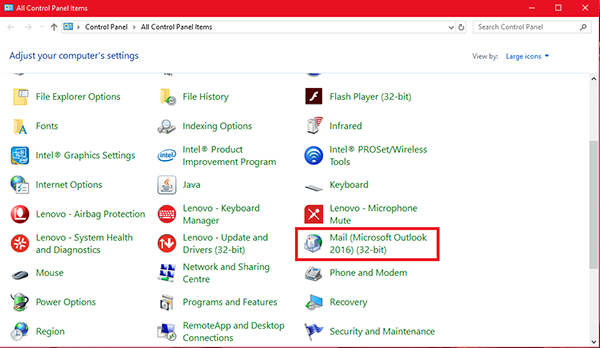
2. Select "Mail (Microsoft Account Outlook)"
3. Select "New"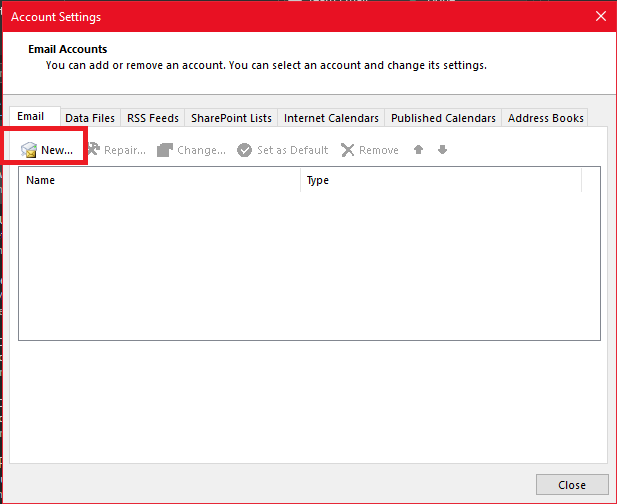
4. Select "Manual setup or additional Account Types"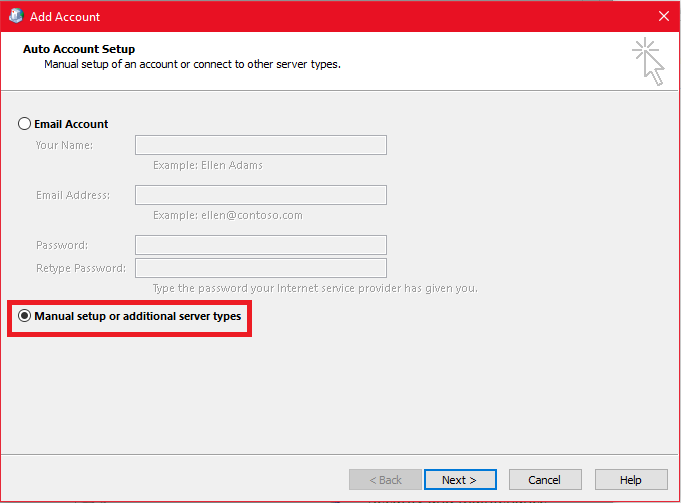
5. Select Pop or IMAP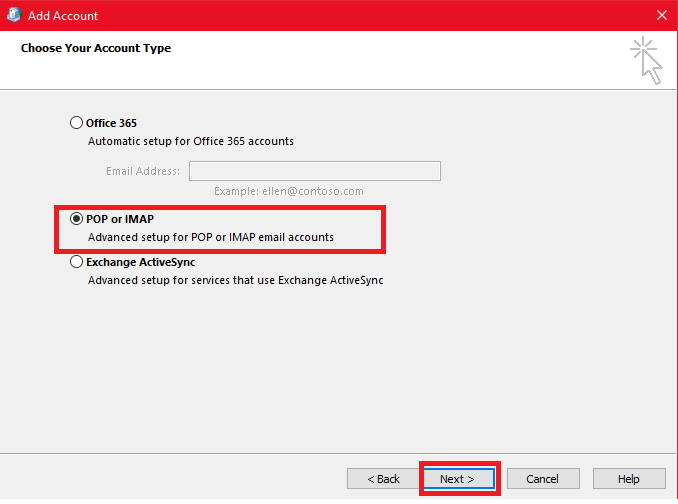
6. Fill out the corresponding fields: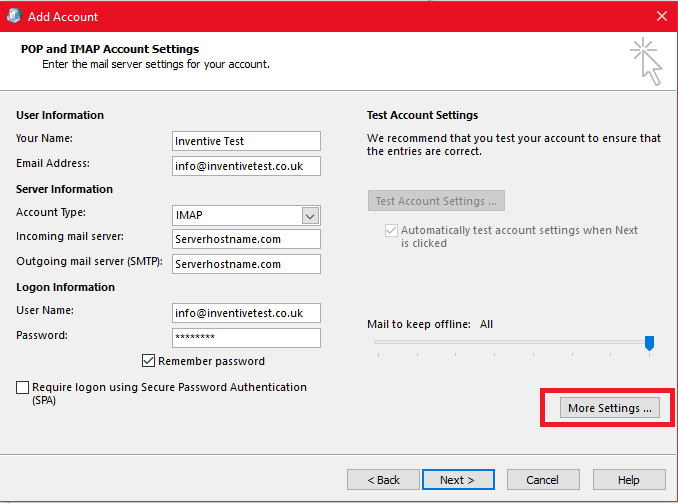
Your Name: the one you wish to have for this account
Email Address: full email address
Account Type: IMAP
Incoming and Outgoing mail server (SMTP): Server's hostname provided in your welcome email or in cPanel under Server information - Please ask Support if you can't find it.
User Name: full email address
Password: password for this mail account
Require logon using Secure Password Notification (SPA) should to be unchecked:
7. Once done, click on More settings in the lower right corner of the window.
in the tab Outgoing Server checkmark the option My outgoing server (SMTP) requires authentication > Use same settings as my incoming mail server: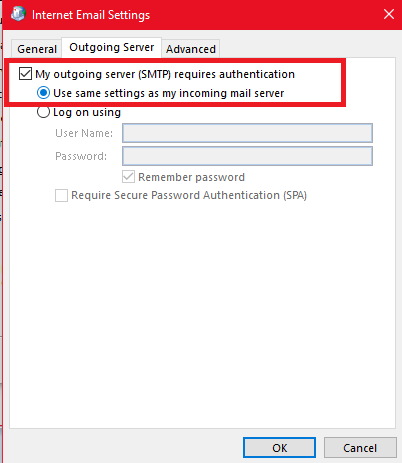
8. In the tab Advanced configure port settings as follows: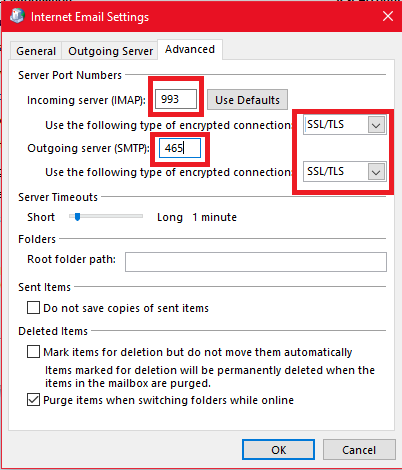
IMAP: port 993 With SSL/TLS enabled
SMTP: port 465 SSL/TLS enabled
9. Once all is done, click OK to close the window and then Next to test server connection:
